
By using this site, you agree to the Privacy Policy and Terms of Use.
Accept
logo logo
Notification
  • Home
  • Lifestyle
  • Business
  • Health
  • Travel
  • Entertainment
  • Digital Marketing
  • Home Decor
  • Contact us
WebFanDomWebFanDom
Font ResizerAa
Search
  • Quick Access
    • Home
    • Contact Us
    • My Saves
    • My Interests
  • Categories
    • Travel
    • Business
    • Fashion
    • Sports
    • Health

Top Stories

Explore the latest updated news!
Moving to Dubai in 2026 guide for expats covering visas, housing, banking, schools, healthcare, and Dubai lifestyle tips

Moving to Dubai in 2026: What Expats Wish They Knew Before Arriving

1
Best AI Face Swap Tools banner with AI-powered face transformation examples and modern app interface design

Best AI Face Swap Tools of 2026 (Free & No Watermark Options)

1
local elections online

Why More People Are Searching for Local Election Information Online

1

Stay Connected

Find us on socials
248.1KFollowersLike
61.1KFollowersFollow
165KSubscribersSubscribe
Made by ThemeRuby using the Foxiz theme. Powered by WordPress

Home » How to Disable Windows 10 Update Temp

Technology

How to Disable Windows 10 Update Temp

Jenny
Last updated: January 31, 2019 10:10 pm
By
Jenny
Share
SHARE

How to Temporary Disable Windows 10 Update Service

Are you frustrated like me after the repetitive failure of some quality updates like KB4480966 (14 times failed with me) which waste hour of my time and bandwidth every time I have to shut down and start?

After I Google for solutions, I found an easier way on easeus.com that can help to turn off Automatic update in Windows 10. One easy solution I used is provided here below. Rest you can read full here.

While disabling the automatic update service will temporarily halt any Windows 10 cumulative updates, the service can re-enable itself after a certain amount of time. Here are the steps you can turn off Windows 10 automatic updates:

1. Press the Windows logo key + R at the same time to invoke the Run box.

2. Type services.msc and press Enter.
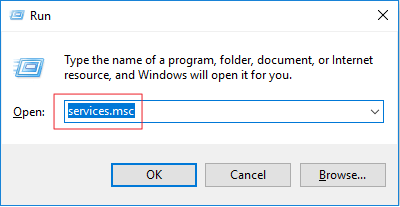
run commond box

invoke run box and type services.msc

3. Scroll down to Windows Update, and double-click it.
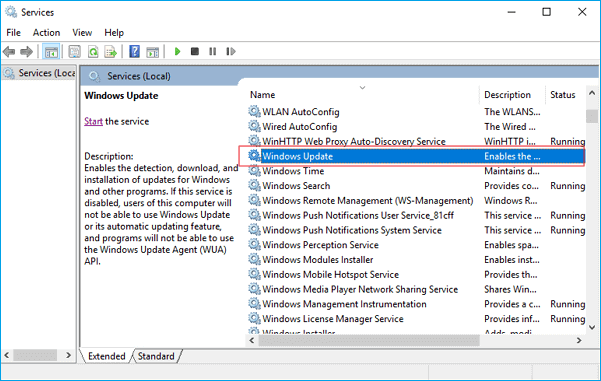
windows services

4. In Startup type, select Disabled. Then click Apply and OK to save the settings.

disable the windows update service

Although, it’s recommended that you manually check for update once a week to keep your device updated.

Share This Article
Facebook Pinterest Whatsapp Whatsapp Copy Link
What do you think?
Love0
Sad0
Happy0
Embarrass0
Sleepy0
Surprise0
Wink0
ByJenny
Follow:
A passionate blogger and digital marketing personnel who loves writing, reading and sharing blogs on the various topic.

Recent Posts

  • Moving to Dubai in 2026: What Expats Wish They Knew Before Arriving
  • Best AI Face Swap Tools of 2026 (Free & No Watermark Options)
  • Why More People Are Searching for Local Election Information Online
  • GWM Global All-Scenario Test Drive: Finding Answers for the World, in China
  • Traveling Light in Japan: How Smart Packing Transforms Every Journey

Sign Up for Our Newsletter

Subscribe to our newsletter to get our newest articles instantly!

[mc4wp_form id=”847″]

May 2026
M T W T F S S
 123
45678910
11121314151617
18192021222324
25262728293031
« Apr    

Related Stories

Uncover the stories that related to the post!
cloud phone systems
Technology

Dialing into the Future: The Intelligent Shift to Cloud-Based Phone Systems

5
The Erodium Copy Robot
TechnologyScience

Interesting Fact About Erodium Copy Robot

8
What is digital real estate?
TechnologyBusiness

Understanding Digital Real Estate: A New Frontier in Virtual Assets

10
AI Tools for Business
Technology

Top AI Tools for Streamlining Business Operations

57
Show More

About US

logo logo

Web Fandom is your go-to platform for tech trends, digital marketing, SEO tips, and lifestyle insights. Discover how-to guides, and the latest updates to boost your online presence and skills.

Quick Links

  • Home
  • Disclaimer
  • Terms of Use
  • Privacy Policy
  • GDPR Cookies
  • Contact us

© 2026 WEBFANDOM.COM | Powered by WordPress.

Welcome Back!

Sign in to your account

Username or Email Address
Password

Lost your password?