


By using this site, you agree to the Privacy Policy and Terms of Use.
Accept
logo logo
Notification
  • Home
  • Lifestyle
  • Business
  • Health
  • Travel
  • Entertainment
  • Digital Marketing
  • Home Decor
  • Contact us
WebFanDomWebFanDom
Font ResizerAa
  • HomeHome
  • My Interests
  • My Saves
Search
  • Quick Access
    • Home
    • Contact Us
    • My Saves
    • My Interests
  • Categories
    • Travel
    • Business
    • Fashion
    • Sports
    • Health

Top Stories

Explore the latest updated news!
what is a fractional cfo

What is a Fractional CFO and What Does It Do?

2
how many wheels are in the world

So, How Many Wheels Are in the World Anyway?

2
Restaurant with Burj Khalifa View

The Role of Location and View in Enhancing Dubai’s Dining Experience

2

Stay Connected

Find us on socials
248.1kFollowersLike
61.1kFollowersFollow
165kSubscribersSubscribe
Made by ThemeRuby using the Foxiz theme. Powered by WordPress
Home » How to Disable Windows 10 Update Temp
Technology

How to Disable Windows 10 Update Temp

Jenny
Last updated: January 31, 2019 10:10 pm
By Jenny
Share
SHARE

How to Temporary Disable Windows 10 Update Service

Are you frustrated like me after the repetitive failure of some quality updates like KB4480966 (14 times failed with me) which waste hour of my time and bandwidth every time I have to shut down and start?

After I Google for solutions, I found an easier way on easeus.com that can help to turn off Automatic update in Windows 10. One easy solution I used is provided here below. Rest you can read full here.

While disabling the automatic update service will temporarily halt any Windows 10 cumulative updates, the service can re-enable itself after a certain amount of time. Here are the steps you can turn off Windows 10 automatic updates:

1. Press the Windows logo key + R at the same time to invoke the Run box.

2. Type services.msc and press Enter.
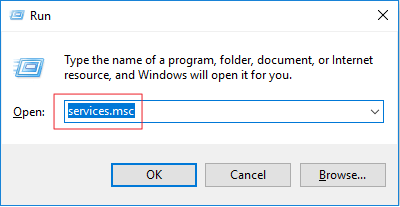
run commond box

invoke run box and type services.msc

3. Scroll down to Windows Update, and double-click it.
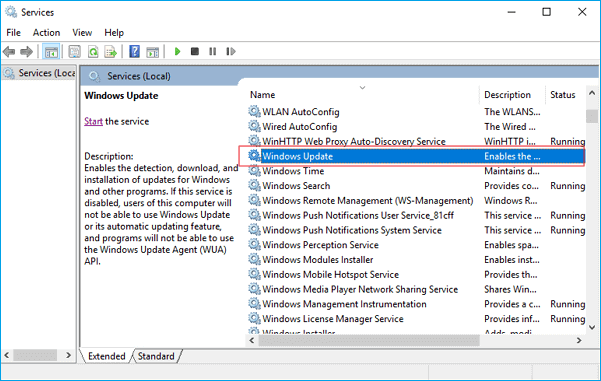
windows services

4. In Startup type, select Disabled. Then click Apply and OK to save the settings.

disable the windows update service

Although, it’s recommended that you manually check for update once a week to keep your device updated.

Share This Article
Facebook Pinterest Whatsapp Whatsapp Copy Link
What do you think?
Love0
Sad0
Happy0
Embarrass0
Sleepy0
Surprise0
Wink0
ByJenny
Follow:
A passionate blogger and digital marketing personnel who loves writing, reading and sharing blogs on the various topic.

Recent Posts

  • What is a Fractional CFO and What Does It Do?
  • So, How Many Wheels Are in the World Anyway?
  • The Role of Location and View in Enhancing Dubai’s Dining Experience
  • Dialing into the Future: The Intelligent Shift to Cloud-Based Phone Systems
  • TLK Fusion Complaints: What Clients Say, What’s True, and What You Should Know

Sign Up for Our Newsletter

Subscribe to our newsletter to get our newest articles instantly!

[mc4wp_form id=”847″]

December 2025
M T W T F S S
1234567
891011121314
15161718192021
22232425262728
293031  
« Oct    

Related Stories

Uncover the stories that related to the post!
cloud phone systems
Technology

Dialing into the Future: The Intelligent Shift to Cloud-Based Phone Systems

2
The Erodium Copy Robot
ScienceTechnology

Interesting Fact About Erodium Copy Robot

5
What is digital real estate?
BusinessTechnology

Understanding Digital Real Estate: A New Frontier in Virtual Assets

7
AI Tools for Business
Technology

Top AI Tools for Streamlining Business Operations

53
Show More
logo logo

Web Fandom is your go-to platform for tech trends, digital marketing, SEO tips, and lifestyle insights. Discover how-to guides, and the latest updates to boost your online presence and skills.

[mc4wp_form]
  • Categories:
  • Fashion
  • Travel
  • Sport
  • Adverts

Quick Links

  • My Interests
  • My Saves

About US

&#x00A9 2025 WEBFANDOM.COM | Powered by WordPress.
adbanner
Welcome Back!

Sign in to your account

Username or Email Address
Password

Lost your password?